

.svg)
 Healthcare
 Finance
 Retail
 SaaS & Digital
 eCommerce
 Education
 Salesforce
  HubSpot
 Pipedrive
 Mailchimp
 Klaviyo
 Zendesk
  Intercom
 Freshdesk
 HelpScout
  Front
Front Jira
Jira Slack
Slack  MS Teams
 Zoom
Zoom Google Sheets
  Zapier
  Integrately
 Make
Make  Webhooks



 Sign In
 MS Teams


TL;DR
- Zonka Feedback offers two mapping types for syncing survey responses to Salesforce: Custom Mapping (manual, any object) and Managed Mapping (automatic, Contacts only).
- Custom Mapping supports Cases, Accounts, Opportunities, Leads, and custom objects with field-level control over what data lands where.
- Managed Mapping auto-syncs response fields to Salesforce Contacts with one-click setup. Best for fast NPS or CSAT deployment.
- Both work through native OAuth connection. No AppExchange package required.
- Advanced capabilities include lookup field mapping with reference IDs, partial response capture, multi-object mapping, and Salesforce merge fields in survey questions.
Getting surveys into Salesforce is the easy part. Getting responses onto the right record, in the right field, tied to the right interaction: that's where most setups quietly fall apart.
A CSAT score that maps to a Contact instead of the Case it belongs to looks fine during configuration. But it breaks your reporting. You lose the connection to the agent who handled the ticket, the case type, the resolution time. An NPS response that doesn't attach to the Account record gives your CS team a number with no context about which customer relationship it represents.
Mapping is the decision that determines whether feedback data is useful or just present in your Salesforce org. Two mapping types, two different trade-offs, and one right answer depending on your program. This guide covers both, explains when to use each, and walks through the advanced capabilities most teams don't discover until after they've already configured things wrong.
For the full picture of how Salesforce surveys work end to end, see our complete Salesforce survey guide.
What Is Survey Data Mapping in Salesforce?
Survey data mapping is the process of connecting survey response fields to Salesforce object attributes so that feedback data lands on the right record in your CRM.
When a customer submits a survey, each response field needs a destination in Salesforce: the score, the open-text comment, the timestamp, the respondent's identity. Without mapping, responses collect in your survey platform but never reach the Salesforce records where your team actually works.
The mapping type you choose determines four things: which Salesforce object receives the data (Case, Contact, Account, custom object), which fields get populated, when data syncs, and what happens when a matching record isn't found.
Zonka Feedback supports two mapping types: Custom Mapping and Managed Mapping. Both connect through native OAuth authentication. No AppExchange package required for either one.
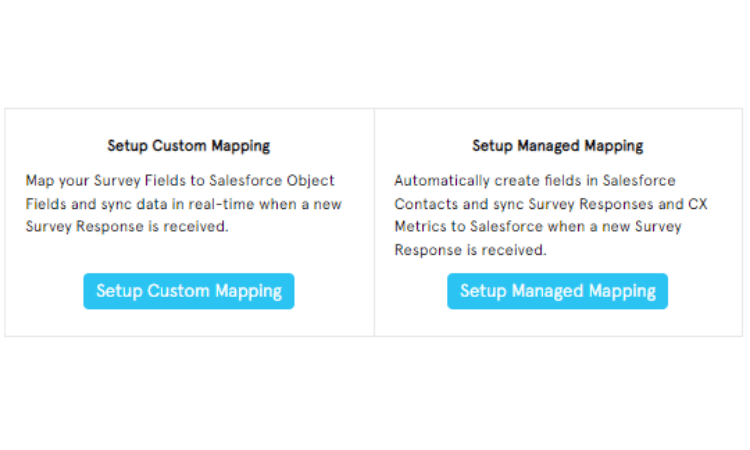
The connection is one-time and takes under five minutes.
Go to the Integrations tab in Zonka Feedback, select Salesforce, and log in with your Salesforce credentials via OAuth. Zonka authenticates directly with your org. No AppExchange package to install, no middleware, no custom code.
Once connected, you choose a mapping type per survey. Custom or Managed. The same connection supports both, so you can run Custom Mapping on your post-case CSAT survey and Managed Mapping on your quarterly NPS survey within the same Salesforce org. See the full details on Zonka's Salesforce integration page.
Custom Mapping: Full Control Over Where Data Lands
Custom Mapping is manual field-by-field mapping of survey response fields to attributes of any Salesforce object. You define which object receives data, which fields populate, what match criteria determine the target record, and when syncing occurs.
The key word: any object. Contact, Lead, Account, Opportunity, Case, and any custom object your org uses. That flexibility is what separates Custom Mapping from Managed Mapping and what makes it the right choice for complex feedback programs.
When to Use Custom Mapping
Post-case CSAT surveys: Map to the Case object so scores tie to the specific agent, case type, queue, and resolution time. This is what makes agent-level reporting possible.
Post-deal NPS: Map to the Opportunity object to correlate deal satisfaction with deal size, sales rep, and product line.
Multi-object programs: Map a single survey response to both Case AND Contact simultaneously. You get interaction-level data and customer-level trending from the same survey.
Custom object programs: If your org uses custom objects for specific feedback workflows (resident records, patient records, project records), Custom Mapping handles them.
How to Set Up Custom Mapping
- Open your survey in Zonka Feedback → go to Integrations → select Salesforce (already connected via OAuth)
- Select the Custom Mapping tab
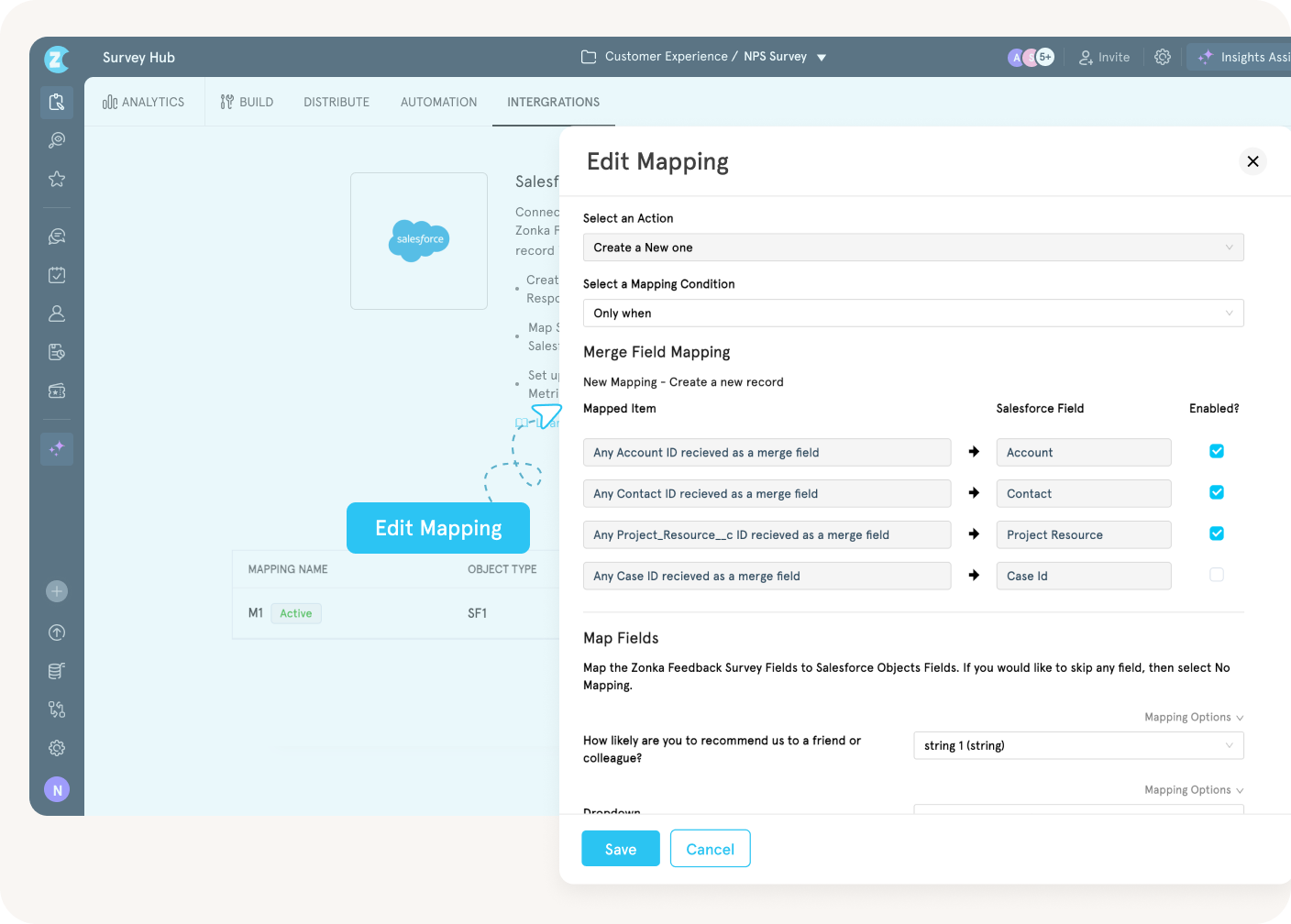
- Click Add Mapping. The configuration panel opens with these fields:
- Mapping Name: A textual identifier for this mapping (e.g., "Post-Case CSAT to Case Object")
- Salesforce Object Type: Select the target object from the dropdown: Contact, Lead, Account, Opportunity, Case, or any custom object in your org
- Select an Action: Define what Zonka does when a response comes in (create new record, update existing, or upsert)
- Select a Mapping Condition: When to sync: "Everytime" syncs all responses. Or set specific criteria so only qualifying responses map.
- Scroll to the Map Fields section. Map each Zonka Feedback survey field to a corresponding Salesforce object field. If you want to skip a field, select "No Mapping" for that row.
- Save and test with an internal submission before going live
What Fields Can You Map?
Any survey field Zonka captures can be mapped to any field on the target Salesforce object. The common ones:
- CX metric scores: NPS rating, CSAT score, CES score → Number or Picklist fields in Salesforce
- Open-text responses: Follow-up comments, verbatim feedback → Long Text Area or Rich Text fields
- Respondent identity: Email address, name, phone number → Standard Contact or Lead fields
- Survey metadata: Submission timestamp, survey name, distribution channel (email/SMS/web), device type → Text or DateTime fields
- Custom question responses: Multiple choice selections, rating scales, dropdown answers → Picklist, Number, or Text fields depending on question type
- Calculated fields: NPS category (Promoter/Passive/Detractor), survey completion status → Picklist or Formula fields
- Lookup fields: Reference IDs that link responses to specific Salesforce records via lookup relationships
The mapping is field-to-field. One survey question maps to one Salesforce field. If your NPS survey has a score question and an open-text follow-up, the score maps to a number field and the comment maps to a separate text field on the same object.
Lookup Field Mapping
Standard matching uses email or phone to find the right Salesforce record. Lookup field mapping goes further: you create mappings between Zonka Feedback fields and Salesforce lookup fields that reference specific record IDs.
This supports structured 1-to-1 mapping across Accounts, Contacts, Opportunities, and custom objects. Responses link to the exact record they belong to, not the first record that happens to share an email address. Whether you're importing data via CSV or syncing through online URLs, lookup fields maintain clean object relationships across systems.
For teams with multiple contacts at the same account, or programs where you need to map feedback to a specific Case by Case ID, lookup field mapping removes the ambiguity that email-based matching can't.
Salesforce Merge Fields in Surveys
Custom Mapping supports Salesforce merge fields in both the email body and survey questions. A post-case survey can ask "How was your experience with [Agent Name] on case [Case Number]?" with both values populated directly from the Salesforce record that triggered the survey. Personalization without manual effort.
Custom Mapping Strengths
- Full control over target objects, fields, and sync conditions
- Supports any Salesforce object including custom objects
- Multi-object mapping from a single survey response
- Lookup field mapping with reference IDs for precise record matching
- Merge field support for personalized survey questions
Custom Mapping Trade-offs
- More setup time: 15-30 minutes per survey depending on complexity
- Requires manual updates if Salesforce fields or objects change
Managed Mapping: Fast Setup for Contact-Level Feedback
Managed Mapping is the faster option. It auto-syncs survey response data to Salesforce Contact records without requiring manual field-by-field configuration. Managed Mapping is specifically designed for contact-level data: it matches survey respondents to existing Contacts in your Salesforce org and syncs response data to those records automatically.
How to Set Up Managed Mapping
- Open your survey → Integrations → Salesforce
- Select the Managed Mapping tab
- Configure your sync rules using two toggles:
- Sync responses based on Salesforce Contact Id: Matches the Salesforce Contact ID from the connected account and syncs survey details to that Contact record
- Sync responses based on Contact Email Address: Matches respondents by email address to existing Contacts in your connected Salesforce account
- Optionally, enable "Create a new contact if email address is not found and sync response" to auto-create Contact records for respondents who aren't already in Salesforce
- Click Save
That's it. No field mapping, no object selection, no action configuration. Responses sync to the Contact record automatically.
What Managed Mapping Syncs
Because Managed Mapping is built for Contact data, it syncs respondent-level information: the survey response (scores, comments), respondent identity (email, name), and survey metadata (timestamp, channel). All of this lands on the matched Contact record, giving your team a feedback history per individual customer without any manual configuration.
What it doesn't do: map to Cases, Accounts, Opportunities, or custom objects. If you need survey data tied to a specific support interaction, deal, or account-level aggregate, you need Custom Mapping.
When to Use Managed Mapping
Managed Mapping fits best when your feedback program operates at the Contact level. Quarterly NPS surveys mapped to individual contacts, relationship CSAT programs, onboarding check-ins, post-purchase follow-ups. If the goal is "get feedback data onto the Contact record fast," Managed Mapping does that in under five minutes.
The limitation is scope. Managed Mapping only writes to Contacts. If you need post-case CSAT tied to the Case record for agent-level reporting, you need Custom Mapping. Many teams start with Managed to get live quickly and add Custom Mapping for specific surveys once they need deeper object-level data.
Managed Mapping Strengths
- Setup in under five minutes. No manual field configuration.
- Auto-creates Contacts for new respondents
- Zero maintenance: no updates needed when fields change
Managed Mapping Trade-offs
- Limited to the Contact object only
- No support for Cases, Accounts, Opportunities, or custom objects
- Less flexible for complex, multi-object feedback programs
Which Mapping Type Should You Use?
| Criteria | Custom Mapping | Managed Mapping |
| Setup time | 15-30 minutes per survey | Under 5 minutes |
| Salesforce objects | Any: Contact, Case, Account, Opportunity, Lead, custom | Contact only |
| Field-level control | Full: choose exactly which fields populate | Automatic: pre-configured field sync |
| Custom objects | Yes | No |
| Multi-object mapping | Yes (e.g., Case + Contact simultaneously) | No |
| Lookup field mapping | Yes (reference ID matching, CSV + URL sync) | No (email/phone matching only) |
| Merge field support | Yes (email body + survey questions) | Limited |
| Best for | Post-case CSAT, post-deal NPS, complex programs, custom objects | Quick NPS/CSAT on Contacts, relationship surveys, fast deployment |
| Maintenance | Manual updates if SF fields change | Automatic |
| AppExchange required? | No | No |
Most teams we've worked with start with Managed Mapping to get live quickly, then switch specific surveys to Custom Mapping once they need Case-level or Account-level reporting. Running both simultaneously is common and fully supported: one survey on Custom, another on Managed, same Salesforce org.
Advanced Mapping Capabilities
The two mapping types cover most use cases. But Zonka's Salesforce integration also supports several capabilities that teams running larger programs tend to need.
Partial Response Capture
Not every customer finishes a survey. With partial response capture enabled, Zonka syncs whatever data was submitted, even if the customer dropped off after question two of five. For longer surveys, that can mean capturing 20-30% more data than you'd get waiting for only complete submissions. Partial data still tells you something. A score without a comment is still a score.
Independent Mapping and Distribution
Mapping and distribution operate independently. One survey can map responses to multiple Salesforce objects simultaneously: a post-case CSAT writes to both the Case and the Contact. And multiple surveys can feed data into the same object: your transactional CSAT and your relationship NPS can both write to the Contact record, building a longitudinal view of each customer.
Lightning Email Template Support
Surveys can be embedded in Salesforce Lightning Email Templates. Agents send feedback requests from their normal email workflow, and merge fields from the Case, Contact, or Account auto-populate in the email body and survey questions. No copy-pasting survey links. No separate tool for distribution.
For detailed setup instructions on all of these capabilities, see Zonka's Salesforce integration help docs.
Salesforce Survey Mapping Best Practices
Mapping configuration is a one-time setup decision that affects every response that flows into Salesforce afterward. Getting it right from the start saves hours of cleanup later. Six practices that consistently produce cleaner data and better reporting:
1. Map as close to the trigger as possible. If a Case triggered the survey, the response should land on that Case. If an Opportunity triggered it, map to the Opportunity. This is the single most important mapping principle: feedback attached to the triggering record preserves the operational context that makes it useful for reporting.
2. Decide your match logic before configuring anything. Custom Mapping gives you several match options: email, Contact ID, lookup field with reference ID. Pick the one that's most reliable for your data. If your Salesforce org has multiple contacts sharing email addresses (common in B2B), lookup field mapping with record IDs is more reliable than email matching.
3. Test with 2-3 internal submissions before going live. Send a test survey to yourself, submit it, and verify the response lands on the correct Salesforce record in the correct fields. Check what happens when the match criteria find no result. Five minutes of testing prevents weeks of bad data.
4. Use Custom Mapping for transactional surveys, Managed for relationship surveys. Post-case CSAT, post-interaction CES: these are transactional and need to map to the Case or Opportunity. Quarterly NPS, onboarding check-ins: these are relational and map naturally to the Contact. Matching the mapping type to the survey type keeps your data model clean.
5. Enable partial response capture on longer surveys. Surveys with more than three questions will have incomplete submissions. If partial capture is off, you lose that data entirely. Enable it during mapping configuration so every response, complete or not, syncs to Salesforce.
6. Document your mapping configuration. When your team runs 5+ surveys with different mapping types, objects, and field mappings, it's easy to lose track. Maintain a simple reference: survey name, mapping type, target object, key fields mapped. When someone needs to update a mapping or troubleshoot a sync issue, the document saves time.
Common Mapping Mistakes to Avoid
We see four patterns consistently across teams setting up Salesforce mapping for the first time.
1. Mapping CSAT to Contact instead of Case. This is the most common one. A CSAT score on a Contact record tells you the customer's general sentiment. A CSAT score on a Case record tells you how a specific agent handled a specific issue in a specific timeframe. The second is what makes operational reporting possible. Map transactional surveys to the object that triggered them.
2. Not setting match criteria before going live. If Zonka can't find a matching Salesforce record for a response, it either creates a duplicate, skips the sync, or queues the response depending on your configuration. Define your match logic during setup: email, reference ID, lookup field. Testing this with 2-3 internal submissions catches most issues before real data flows.
3. Using Managed Mapping for everything. Managed Mapping is fast. But it only writes to Contacts. Teams that start with Managed because it's easier and realize three months later they need Case-level or Account-level granularity end up remapping and losing the historical connection. Easier to spend 20 minutes on Custom Mapping upfront than to rebuild later.
4. Forgetting partial response capture. If partial response capture isn't enabled, you lose data from every survey that wasn't fully completed. For surveys with more than three questions, incomplete submissions can account for 20-30% of total responses. That's signal you're leaving behind.