

.svg)
 Healthcare
 Finance
 Retail
 SaaS & Digital
 eCommerce
 Education
 Salesforce
  HubSpot
 Pipedrive
 Mailchimp
 Klaviyo
 Zendesk
  Intercom
 Freshdesk
 HelpScout
  Front
Front Jira
Jira Slack
Slack  MS Teams
 Zoom
Zoom Google Sheets
  Zapier
  Integrately
 Make
Make  Webhooks



 Sign In
 MS Teams



TL;DR
- Zonka Feedback's Android SDK lets you trigger in-app surveys contextually: after transactions, feature interactions, or when users show early signs of churning.
- The integration works with both Java and Kotlin, requires Android API 16 (Jelly Bean 4.1) as the minimum, and takes under an hour for a basic setup.
- Every response can automatically carry device metadata (manufacturer, OS version, screen resolution), making it possible to isolate fragmentation-related issues by device model or OEM skin.
- Optional parameters let you pass custom user attributes, link responses to logged-in user identities, and clear session data on logout, giving you segmentation beyond just device-level context.
- Android has specific failure modes most tutorials skip. The most common is ProGuard/R8 stripping the SDK in release builds. This guide covers the fix.
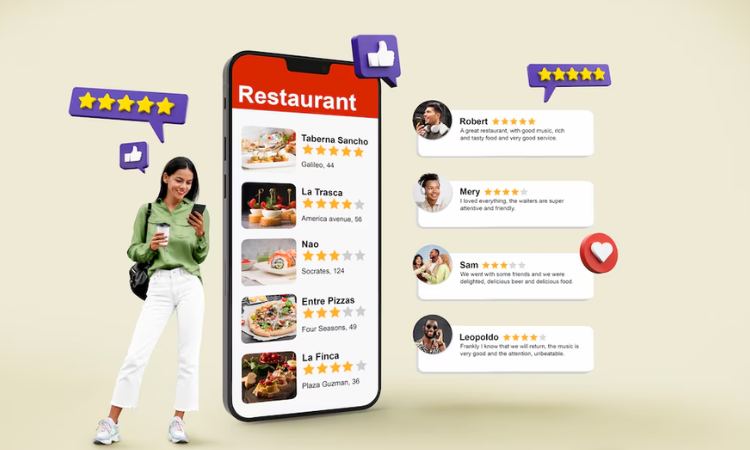
You shipped a feature. It works perfectly on your Pixel 9. Then a user on a Redmi Note 13 files a Play Store review saying the app "randomly breaks" — and you have no idea what they're talking about.
That's the Android fragmentation problem in one sentence.
Android runs on over 24,000 distinct device models (OpenSignal Android Fragmentation Report). Different screen sizes, different OS versions, different manufacturer skins (One UI, MIUI, ColorOS, OxygenOS), each with their own quirks about how apps render, how gestures behave, and how WebViews display. What looks polished on a flagship can feel broken on a budget device. And you won't know until someone complains publicly.
Play Store reviews show up too late, too vague, and too permanent. A user who had a one-time payment failure doesn't always update their two-star review after you fix it. By the time the pattern is visible in your ratings, you've already lost users you could have kept.
In-app feedback solves the timing problem. As one method within the broader product feedback guide framework for collecting and acting on user input, it captures signal that other channels miss. If you're still weighing whether in-app surveys are worth it for your app, our in-app surveys guide covers the full rationale. This post is about the integration itself, and the Android-specific decisions that actually matter once you've decided to build it.
When Should You Trigger Surveys in Your Android App?
The integration is straightforward. The strategy is where most teams get it wrong.
Timing a survey well means understanding what just happened for that specific user on that specific device, not just "they used the app for a while." Here are the five moments where in-app feedback consistently yields the most useful signal on Android.
How Do You Validate New Features Before Full Android Rollout?
Android fragmentation means your feature works differently depending on who's using it. A dark mode toggle that renders cleanly on a Pixel might display incorrectly under MIUI's custom theme system. A gesture-based interaction that feels intuitive on stock Android might conflict with OxygenOS's navigation gestures.
Before a full rollout, trigger a short survey to your beta segment, specifically targeting users on the device models and OS versions you're least confident about. Ask whether the feature worked as expected, not just whether they liked it. The distinction matters. This approach works particularly well after a beta testing survey cycle, where the feedback from targeted testers informs your rollout confidence.
Example: You push gesture-based navigation to 5% of your Android user base. Triggering a survey after three sessions with the gesture enabled shows you that users on Samsung devices running One UI 6 are confused by a conflict with the native back gesture. You catch it before the broader release.
How Do You Collect Feedback on Live Features in Production?
After a feature ships widely, the volume of data changes, but the quality of signal can drop if you're not deliberate. Passive metrics (retention, session length, click-through) tell you what is happening. In-app surveys tell you why.
Trigger a feedback survey after a user has meaningfully engaged with a feature, not on first touch but after two or three real interactions. That's when they have an informed opinion. Ask about specific friction points, not general satisfaction.
What's the Best Time to Collect Post-Transaction Feedback on Android?
Android devices use more payment methods than any other platform: Google Pay, UPI, carrier billing, Samsung Pay, various OEM-specific wallets. A checkout failure that affects 3% of your users might be entirely isolated to one payment method on one OEM skin.
Trigger a survey immediately after a completed transaction. If the rating is low, a follow-up question about which step caused friction can surface payment-specific issues that standard analytics will never show you. You'd be surprised how often "the app is buggy" actually means "UPI confirmation didn't load on my device."
How Do You Use Surveys for Churn Prevention Before Users Uninstall?
Unlike iOS, Android doesn't prompt users before uninstalling. They just leave. By the time you see churn in your analytics, those users are gone.
So how do you catch them before they go? Watch inactivity patterns, not explicit signals. When a user's session frequency drops sharply (they've opened the app twice in the last 14 days after a streak of daily use), that's the moment to ask a short survey. Not "are you satisfied?" Ask specifically: "What's stopping you from using [feature name] more often?" Give them a multiple choice that includes real options they might actually pick (performance issues, missing features, confusing navigation). You can also trigger a survey on an explicit cancel or downgrade action as the other side of the same coin.
From deployment data across mobile teams running churn-prevention survey programs, at-risk users consistently point to a single fixable friction point (often a specific onboarding step) rather than a systemic product problem. The cause is identifiable. What's missing without in-app feedback is the mechanism to surface it before they're gone.
How Do You Detect Android-Specific UI and Layout Issues?
Foldables are the newest fragmentation challenge most teams underestimate. A survey modal that works fine on a standard display can completely break at the 7.6-inch unfolded state of a Z Fold or Pixel Fold: buttons clipped, text misaligned, scroll behavior unpredictable.
Trigger a feedback survey after the first video playback, the first map interaction, or the first time a user uses the app in a non-standard orientation. If you're seeing a cluster of low ratings from users on foldable device models, you have a display bug, not a satisfaction problem. For structuring the questions users see when reporting these issues, bug report form questions covers the question design side.
How to Integrate the Zonka Feedback Android SDK: Step-by-Step
Setup takes 30–45 minutes for a basic integration. Here's the complete walkthrough. For the full API reference beyond this guide, see the Android SDK developer documentation.
Note: If you're building cross-platform and need the same survey capability across iOS, Flutter, or React Native, we've covered those separately: in-app feedback with iOS SDK, in-app feedback with Flutter SDK, and in-app feedback with React Native SDK. For a broader look at the mobile SDK for in-app surveys across all platforms, that page covers the full capability set.
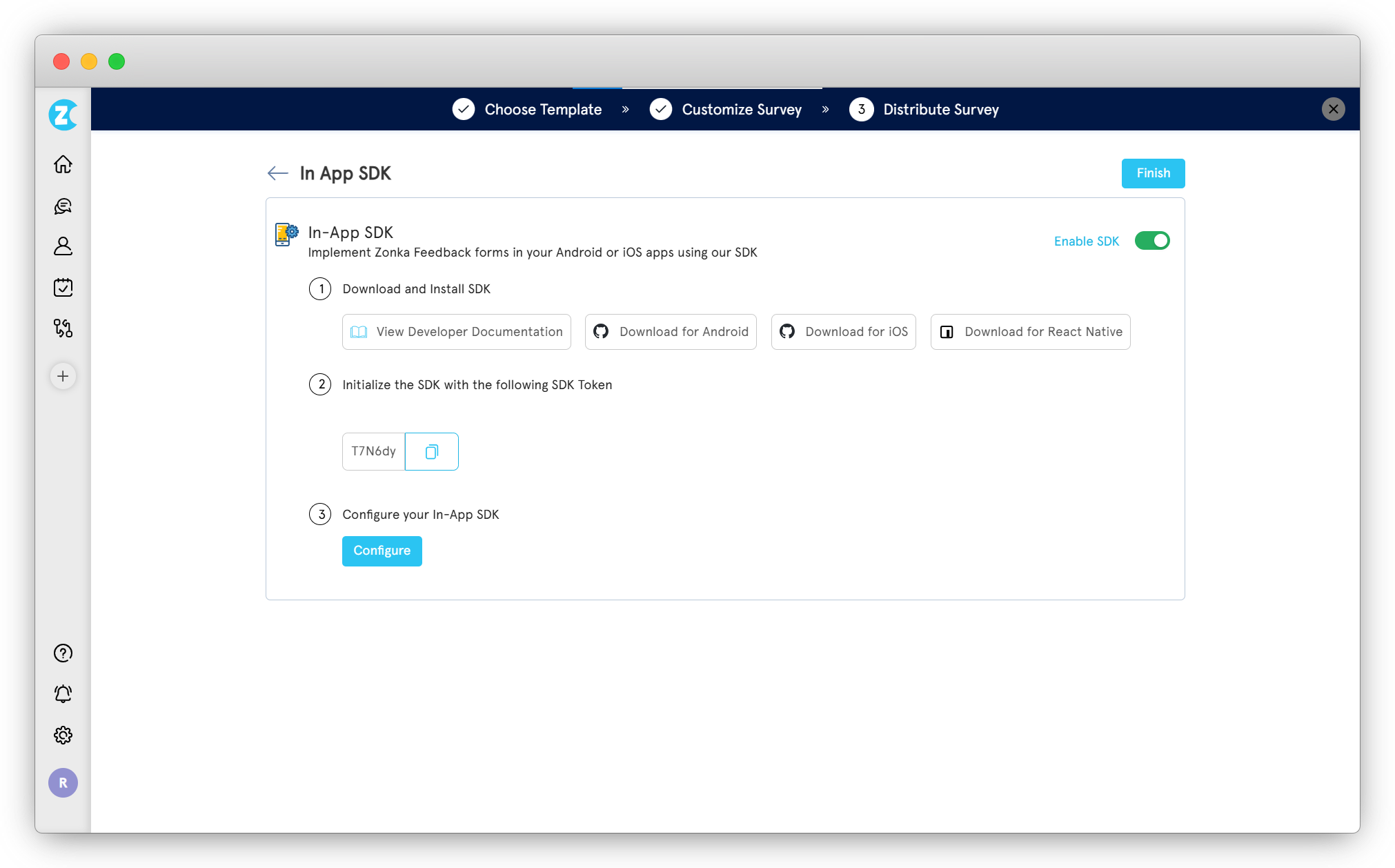
Minimum requirements:
- Android API Version 16 (Jelly Bean 4.1)
- Java or Kotlin — your project, your preference
Step 1: Set Up Your Zonka Feedback Account and Create a Survey
Before the SDK goes anywhere near your code, you need a survey ready.
- Sign up for a Zonka Feedback account if you don't have one
- Create a survey with the questions relevant to your use case: CSAT survey, NPS survey, CES survey, open-ended, or a combination
- Go to the Distribute tab, select In-App, and enable SDK access
- Copy the SDK token. You'll need it in the next step
Step 2: Add the SDK to Your Project Dependencies
Open your project's build.gradle and add the JitPack repository:
allprojects {

    repositories {

        ...

        maven { url 'https://jitpack.io' }

    }

}
Then add the dependency to your app module's build.gradle:
implementation 'com.github.zonka-feedback:android-sdk:v1.0.2'Step 3: Initialize the SDK in Your Application Class
Java
import com.zonkafeedback.zfsdk.ZFSurvey;


public class MyApplication extends Application {

    @Override

    public void onCreate() {

        super.onCreate();

        ZFSurvey.init(ApplicationContext, "SDK_TOKEN", "REGION");

    }

}
Kotlin
import com.zonkafeedback.zfsdk.ZFSurvey


class MyApplication : Application() {

    override fun onCreate() {

        super.onCreate()

        ZFSurvey.init(ApplicationContext, "SDK_TOKEN", "REGION")

    }

}
Note
- Replace
"SDK_TOKEN"with your actual token from the Zonka Feedback dashboard. - Set
"REGION"to US for the United States or EU for Europe.
Step 4: Trigger a Survey from Any Activity or Fragment
Once initialized, launching a survey takes one line:
Java
ZFSurvey.getInstance().startSurvey(this);Kotlin
ZFSurvey.getInstance().startSurvey(this)Surveys open as a modal overlay inside the app. Users submit feedback without leaving your app context. Trigger this after any meaningful user action: a completed transaction, a feature interaction, or a support resolution.
One thing to note: the Android SDK uses a token-per-survey architecture. Each survey you create in the Zonka dashboard gets its own SDK token. If you're running multiple survey types (NPS post-onboarding, CES after a task, CSAT post-transaction), you'll initialize once per app but use different tokens when triggering each survey. The token you pass to startSurvey determines which survey appears.
Step 5: Add Optional Parameters for Richer Context
Basic survey triggering is useful. But responses get significantly more useful when you attach context to them.
a. Capture Device Details Automatically
Java
import com.zonkafeedback.zfsdk.ZFSurvey;


ZFSurvey.getInstance()

    .sendDeviceDetails(true)

    .startSurvey(this);
Kotlin
import com.zonkafeedback.zfsdk.ZFSurvey


ZFSurvey.getInstance()

    .sendDeviceDetails(true)

    .startSurvey(this)
Every response gets OS version, device manufacturer, model, and screen resolution attached automatically. When you're seeing a cluster of low CSAT scores, that metadata is what lets you filter by Samsung vs. Xiaomi, or Android 12 vs. Android 14, and find out if it's a fragmentation issue or a universal one.
For NPS specifically: running device-segmented analysis on your promoters and detractors often surfaces device-class patterns that aggregate scores completely hide. For structuring your NPS question and follow-ups, that guide covers the question design.
b. Attach User-Specific Attributes
Java
import com.zonkafeedback.zfsdk.ZFSurvey;


HashMap<String, Object> hashMap = new HashMap<>();

hashMap.put("contact_email", "james@examplemail.com");

hashMap.put("contact_name", "James Robinson");

hashMap.put("contact_mobile", "+91019019010");


ZFSurvey.getInstance()

    .sendCustomAttributes(hashMap)

    .startSurvey(this);
Kotlin
import com.zonkafeedback.zfsdk.ZFSurvey


val hashMap: HashMap<String, Any> = HashMap()

hashMap["contact_email"] = "james@examplemail.com"

hashMap["contact_name"] = "James Robinson"

hashMap["contact_mobile"] = "+919191919191"


ZFSurvey.getInstance()

    .sendCustomAttributes(hashMap)

    .startSurvey(this)
You can pass any attributes relevant to your app: subscription tier, app version, transaction ID, user cohort. These become segmentation dimensions in your Zonka dashboard, working the same way user segmentation works across all Zonka channels.
Step 6: Identify Logged-In Users for Tracking Across Sessions
If your app has authentication, link responses to specific user profiles:
Java
HashMap<String, Object> hashMap = new HashMap<>();

hashMap.put("contact_email", "james@examplemail.com");

hashMap.put("contact_name", "James Robinson");

hashMap.put("contact_mobile", "+919191919191");

ZFSurvey.getInstance().userInfo(hashMap);
Kotlin
val hashMap = HashMap<String, Any>()

hashMap["contact_email"] = "james@examplemail.com"

hashMap["contact_name"] = "James Robinson"

hashMap["contact_mobile"] = "+919191919191"

ZFSurvey.getInstance().userInfo(hashMap)
Tracking how sentiment changes across sessions is most useful for NPS, where a single score tells you little but a trajectory tells you a lot.
Step 7: Clear User Data on Logout
Good practice for both privacy and data integrity:
Java
ZFSurvey.getInstance().clear();Kotlin
ZFSurvey.getInstance().clear()Call this on logout. Stored visitor attributes from the previous session don't follow the next user who picks up the device.
Which Android In-App Feedback SDK Should You Use?
The honest answer is: it depends on what you're primarily trying to do.
Instabug is worth looking at if bug reporting is your main priority. It combines crash reporting with feedback collection in a single SDK, which makes it a strong choice for teams who want to correlate crashes with user reports. The trade-off is that its survey capabilities are limited. You're getting a bug-first tool, not a feedback-first one.
Appcues is built around onboarding flows. If your primary goal is guiding users through product adoption rather than measuring their experience, it makes more sense. Survey collection is secondary to its core use case.
Pendo is a product analytics tool that includes surveys. If your team is already deep in product analytics and wants survey data as an additional layer in that context, it fits well. It's heavier to implement and more expensive at scale than a survey-focused tool.
Zonka Feedback is the right call when your primary goal is survey collection (NPS, CSAT, CES, or open-ended) with the ability to segment responses by device metadata, link responses to user identity, and run AI analysis on the results. The device detail capture baked into the Android SDK (manufacturer, OS version, screen resolution, all captured automatically) is something most alternatives require custom code to replicate. That matters specifically for Android, where fragmentation makes device-level segmentation a real operational need, not a nice-to-have.
If you're evaluating multiple tools more broadly, our in-app feedback tools guide covers the full range across use cases.
Bottom line: Choose by primary job. Bug reporting + feedback → Instabug. Onboarding flows → Appcues. Product analytics with surveys as a layer → Pendo. Survey-first with device-level segmentation and AI analysis → Zonka Feedback.
What Android Gets Wrong About In-App Surveys (And How to Fix It)
Most teams get the integration right and the strategy wrong. Three Android-specific problems come up repeatedly.
Keep Surveys Short, Especially on Android
Android users have shorter median session lengths than iOS users on most app categories (Statista, 2024). That's partly device demographics, partly the variety of contexts Android is used in. The implication for surveys: on Android, a three-question survey will outperform a five-question one on response rate almost every time.
Format matters just as much. Open-text questions on Android get ~30% lower completion rates than on iOS. Keyboard behavior across manufacturer skins is inconsistent, and switching input modes mid-survey frustrates users in ways you won't see on a uniform platform. Lead with a rating question (NPS, CSAT, or a star scale) and make the follow-up text field optional.
Single-question microsurveys (one rating, one contextual follow-up only if the rating is low) are the format that works best for Android fragmentation scenarios. You're not trying to get a complete picture in one survey. You're building the picture over time, one signal at a time.
But what makes this format work better on Android than iOS specifically? Shorter sessions, more varied input contexts, and keyboard inconsistency across OEM skins all reduce completion rates for longer forms. One question clears those hurdles. For broader guidance on running surveys in mobile contexts, mobile app surveys covers platform-specific considerations.
UI Customization: The Configuration Teams Skip
Most teams trigger the survey and move on. The ones who spend 20 more minutes on visual configuration see meaningfully better response rates.
Here's what most teams skip:
Dark mode: Manufacturer dark mode implementations vary. The survey widget should auto-detect the system theme rather than defaulting to light mode. Users on MIUI's forced dark mode will see a jarring white modal if you don't configure this.
Foldable support: If any portion of your user base is on foldable devices (Z Fold, Pixel Fold), test the survey modal at the 7.6-inch unfolded state explicitly. The default modal width often clips buttons and truncates text at this viewport size.
Font scaling: Android's system font size setting applies to WebView content by default. A user with accessibility font scaling set to 1.5x will see your survey questions in an oversized layout unless you explicitly configure text size behavior.
These aren't edge cases. They're the difference between a survey that looks native and one that looks like it doesn't belong in your app.
The ProGuard / R8 Rule Teams Forget
This is the most common silent failure in Android SDK integrations.
Why doesn't it show up in testing? Because debug builds don't run ProGuard. You'll trigger surveys all day in development, then ship to production and see nothing: no error, no warning, no indication that something broke. Without explicit keep rules, it will strip classes from the Zonka Feedback SDK. The result: surveys work perfectly in debug builds and disappear completely in production. No error thrown, no crash logged, no obvious indication of what happened.
Add these keep rules to your proguard-rules.pro before you push to production:
-keep class com.zonkafeedback.** { *; }

-dontwarn com.zonkafeedback.**
Most developer tutorials skip this step because it only shows up in release builds. Catch it in a staging build against a release configuration before you ship.
Best Practices for Collecting In-App Feedback on Android
When Should You Trigger Surveys, and When Shouldn't You?
Trigger when the context is informative, not when it's convenient. After a completed transaction, after a feature interaction, after a support conversation ends: those moments are informative. Mid-onboarding, during a payment flow, while a video is playing: those are interruptions.
Repetition kills your response rate over time. A user who sees a survey after every session will start dismissing it reflexively. Set a suppression window (14 to 30 days is a reasonable default) so that a user who's already responded doesn't see the same survey again immediately.
Timing specifics that work well for Android: within 2–3 minutes of a completed action (not the next session), after at least the second or third engagement with a new feature (not first touch), and triggered by a state change in the app rather than a time-based scheduler.
Keep It Short and Contextual
One to three questions is the functional ceiling for in-app surveys that get completed. Rating scales and multiple choice outperform open text as primary questions. If you need a written response, make it a conditional follow-up: only trigger it when the rating is low or particularly high.
Specificity is what separates useful signal from noise: "How was the checkout experience just now?" not "How satisfied are you with our app?" The more contextual the question, the more useful the answer.
Match the Survey UI to Your App
A survey that looks like it came from a different product is a survey users don't trust. Set the colors, fonts, and button styles to match your app's design system. Add a "Skip" option — never force participation. And test on multiple device configurations before you call it done: the survey that looks right on your development device might look wrong on the phones your users actually carry.
Use Conditional Logic
Don't ask everyone the same question. If a user rates the experience a 4 or 5, ask what they liked most. If they rate it a 1 or 2, ask what went wrong. Conditional logic keeps surveys short for happy users and surfaces specific problems from dissatisfied ones.
For Android specifically: you can also branch on device attributes if your use case warrants it. A user on a budget device model that's had repeated issues might get a slightly different survey flow than a flagship user. This is particularly useful during fragmentation investigations.
Close the Loop
The feedback loop breaks when responses disappear into a dashboard nobody checks. A thank-you message after submission is the minimum. For low scores, a follow-up from the team within a reasonable window (even a templated one) signals to users that the feedback went somewhere. For the full mechanics of how this cycle connects survey responses to product decisions, the product feedback loop guide covers the complete framework.
And when teams skip this step consistently, their next survey gets worse response rates. Users who submitted feedback and heard nothing back don't submit again.
If you take one thing from this section: timing and closing the loop matter more than survey design. A well-timed one-question survey that gets a follow-up outperforms a five-question survey that disappears into a spreadsheet.
Conclusion
Remember that Redmi user who said the app "randomly breaks"? With device metadata attached to every survey response, that review becomes a data point instead of a mystery — filtered by manufacturer, OS version, and screen resolution within seconds.
That's the real value of in-app feedback on Android. Not just collecting opinions, but turning fragmentation from a guessing game into something you can actually diagnose and fix.
Book a demo to see how Zonka Feedback's Android SDK handles device-level segmentation in practice.

-3.png)
-Feb-11-2025-06-44-08-4705-AM.png)
-1.png)