

.svg)
 Healthcare
 Finance
 Retail
 SaaS & Digital
 eCommerce
 Education
 Salesforce
  HubSpot
 Pipedrive
 Mailchimp
 Klaviyo
 Zendesk
  Intercom
 Freshdesk
 HelpScout
  Front
Front Jira
Jira Slack
Slack  MS Teams
 Zoom
Zoom Google Sheets
  Zapier
  Integrately
 Make
Make  Webhooks




 MS Teams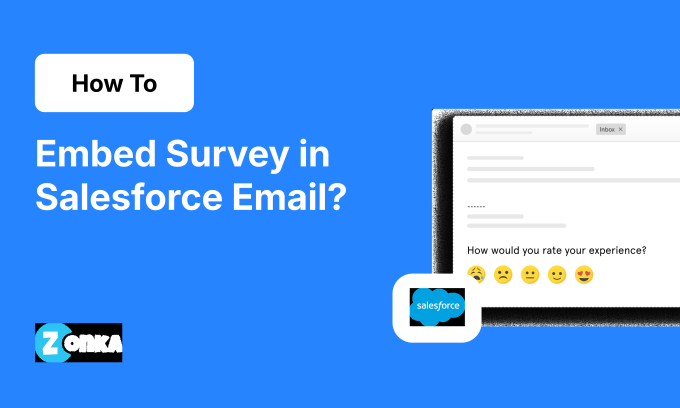


TL;DR
- Two ways to embed a survey in a Salesforce email: place the first survey question in the email body, or include a survey link as a clickable button.
- Embedded questions get roughly 25-35% response rates vs 10-18% for linked emails.
- Works with both Classic and Lightning Salesforce email templates. No coding needed.
- Use Salesforce merge fields to personalize with the contact name, case number, or agent details.
- Survey responses sync back to Salesforce records automatically, and low scores can trigger follow up tasks for recovery.
Most Salesforce orgs already send post-case emails to customers. You're closing the ticket, firing off a confirmation, done. But that email is already going out. Adding a one-click rating question to it turns a transactional message into a feedback channel, and it costs you nothing in terms of extra workflow.
Whether you're running Service Cloud, Sales Cloud, or both, the setup is the same. The only thing that changes is which objects trigger the email and which Salesforce records the responses map to.
We've set up embedding surveys in Salesforce emails across hundreds of orgs at this point. The teams that get the best results tend to keep it simple: pick one question, embed it in an existing email template, connect a trigger, go live. This guide covers both embedding methods, the full setup, and what happens after customers actually respond.
For the broader strategy, start with our complete guide to Salesforce surveys.
Why Embedding Surveys in Salesforce Emails Works
There are a handful of reasons teams go with embedded surveys over linked ones, and they're all pretty practical. Higher response rates, cleaner data, less manual work.
Recipients Answer Without Leaving Their Inbox
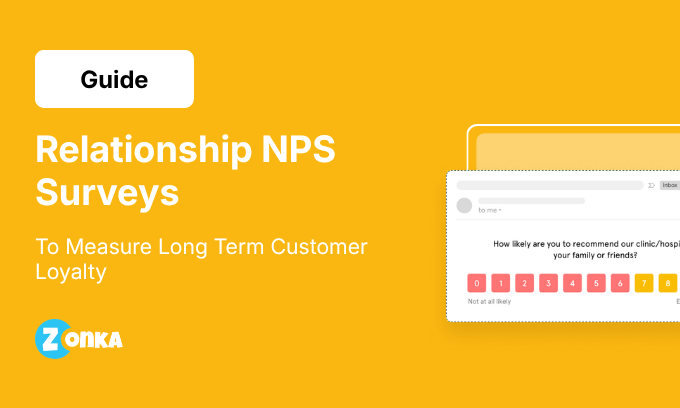
The embedded survey question shows up right in the email body. A CSAT star rating, an NPS scale, a thumbs up/down. The customer taps an answer without opening a new tab or navigating anywhere. They're then directed to a short follow-up page if you have additional questions, but honestly, most of the value is in that first click.
Response rates reflect this. From the Salesforce programs we've run, embedded questions typically land in the 25-35% range. Linked emails, where you're asking someone to click through to a separate page, tend to sit around 10-18%. The difference matters when you're sending a few thousand of these a month.
Responses Land on the Right Salesforce Records
Every response maps to the Contact, Case, or Account record it belongs to. No CSV exports, no manual matching. Response data flows into Salesforce automatically.
This is actually the part most people underestimate. A CSAT score by itself is just a number. That same score sitting on a specific Case, owned by a specific agent, tied to a specific customer? Now your support lead can do something with it. A 2/5 rating on a closed case can auto-create a follow up task for the supervisor. They see the score, the case context, and the open-text feedback all on one screen.
Account managers get NPS trends on Account records. Nobody has to leave Salesforce to figure out how customers feel about their experience.
Automate the Send, Then Forget About It
Salesforce Flow handles the trigger. Case closed, opportunity won, onboarding milestone hit. You configure it once and every future interaction with customers gets the feedback request automatically. Set suppression rules so the same contact doesn't get surveyed twice in 30 days, and you're done.
A typical setup looks like this: Case Status changes to "Closed," which fires a Flow. The Flow waits 30 minutes (give the resolution time to breathe), then sends the CSAT email via a Lightning email template. Nobody has to remember anything. It just runs.
Measure Net Promoter Score, Customer Satisfaction, and Customer Effort Score From the Same Workflow
You can embed Customer Satisfaction, Customer Effort Score, or Net Promoter Score questions directly in Salesforce emails. CSAT (1-5 rating) goes out post-case close or post-purchase. NPS (0-10 rating) is better suited for quarterly check-ins or renewal windows. CES (agree/disagree scale) fits after support resolutions or complex processes.
Sales reps see scores on Opportunity records. Support agents see case-level ratings. Managers get roll-ups. It all comes from the same data without anyone maintaining a separate dashboard.
The Downstream Stuff: Campaigns, Segmentation, Sentiment Tracking
This is where it gets interesting, though it's a bit beyond the scope of an embed tutorial. Survey responses in Salesforce become segmentation data. Customers who gave a 9 or 10 on NPS can get routed into referral campaigns. Detractors can trigger retention workflows. You can tailor marketing messages based on what customers actually said in their feedback.
Over time, you also build a longitudinal view. Track customer satisfaction trends month over month. Watch for NPS dips in specific segments. In industries like healthcare, e-commerce, and financial services where customer experience directly impacts retention, this kind of always-on feedback data is particularly useful.
But honestly, most teams should get the basic embed working first and think about the analytics layer later.
Two Ways to Embed a Survey in a Salesforce Email
Before the setup, pick your method.
Option 1: Embed the first question in the email body. The rating scale or NPS question appears inline. Customers answer in one click. After that, they're directed to a landing page for follow-up questions if you have them. Best for transactional surveys (CSAT, CES) where you want one answer fast.
Option 2: Include a survey link or button. A CTA button links to the full survey in a new tab. Lower response rate, but you can ask more questions and collect longer open-text feedback. Better for relationship NPS, onboarding check-ins, or anything multi-question.
Note: there's also the email signature embed, which is a different setup. We cover that further down.
Step-by-Step: Embed a Survey in a Salesforce Email
Five steps from a blank survey to a live embed. The first three happen in Zonka Feedback, the last two happen in Salesforce.
Step 1: Create Your Email Survey in Zonka Feedback
Log in to Zonka Feedback, go to Surveys, click Add Survey. Pick from pre-built templates (there are free ones for CSAT, NPS, and CES) or start blank.
The survey builder supports the usual question types: NPS (0-10 rating), CSAT (1-5 star rating or smiley scale), CES (agree/disagree), multiple choice, open-text. There's also an AI creator that can generate questions from a prompt, which is handy if you just want to get something up quickly. Customize branding, logo, language. Multilingual support works out of the box if you serve customers across regions.
Zonka's Salesforce integration handles everything from here to the sync.
Step 2: Select the Distribution Channel
Select Email as your distribution channel. A preview panel shows how the embedded question or button will look. Name the survey for internal tracking, add a description if you want, click Next.
Step 3: Choose Your Embed Format and Configure Salesforce Data
Two things happen in this step: you pick how the survey appears in the email, and you tell Zonka which Salesforce data to pull in.
Embed style. You'll see two options: Question or Button. Question embeds the first survey question directly in the email body. Button places a styled CTA that links to the full survey on a hosted page.
Which Question Types Work as Inline Embeds?
Only single-selection question types render inside the email body: NPS, CSAT (star rating or smiley), CES, thumbs up/down, and smiley scale. Anything multi-select, open-text, or matrix loads on the follow-up page after the first click. This catches some people off guard, so worth knowing before you build the survey.
Salesforce data configuration. Below the embed style toggle there's a Salesforce Data panel. This is where you connect the survey to your CRM:
- Object that triggers the email alert: Case for post-case feedback, Opportunity for post-sale. This determines what fires the send.
- Recipient name and email fields: Usually "Name" and "Email Address" on the Contact.
- Salesforce merge fields: Contact ID, Account ID, Asset ID, Case Source ID, whatever you need. These are what let Zonka map responses back to the correct Salesforce records after someone answers.
Write your subject line here too. Personalize it with merge fields: "Hi , how would you rate your experience with case #?" makes a noticeable difference versus something generic.
Step 4: Activate Your Salesforce Trigger
This wires Zonka to Salesforce so surveys go out automatically. Two paths here.
Path A: Salesforce Outbound Message (Zonka sends the email)
Most teams go with this one. Zonka sends the email, triggered by a Salesforce event.
Zonka generates a unique endpoint URL for your trigger, something like https://us1.zonkafeedback.com/api/v1/integration/salesforce/outboundMessage/[your-unique-id]. Copy it.
In Salesforce Setup, go to Workflow Actions and create a new Outbound Message for the same object you picked in Step 3. Paste the Zonka endpoint URL into the "Endpoint URL" field. Select the fields to include. Save.
Then create a Salesforce Workflow Rule for the same object. Set your conditions: Case Status equals "Closed," Opportunity Stage equals "Closed Won," whatever makes sense. This rule tells Salesforce when to fire the outbound message, which tells Zonka when to send the email.
Save, activate, and the chain is live. Salesforce event fires the rule, rule triggers the outbound message, message hits Zonka's endpoint, Zonka sends the embedded survey email to the contact.
Path B: Download the HTML Email Template (Salesforce sends the email)
Some teams prefer Salesforce to handle the send. In that case, you export the survey as an HTML email template instead.
In Zonka, go to Distribute, then Download Email Templates, select Salesforce. You get an HTML file with the embed code, merge field placeholders, and tracking parameters. Copy the HTML code and paste it into a Salesforce email template:
- Classic email templates: New Custom HTML template, paste the code into the HTML body.
- Lightning email templates: New template, add an HTML content block, paste. Lightning is what Salesforce recommends going forward, but Classic still works fine.
You'll need to swap Zonka's placeholder syntax for Salesforce merge fields:
- becomes {!Contact.FirstName}
- becomes {!Case.CaseNumber}
- becomes {!Case.Owner.Name}
Then trigger this template via Salesforce Flow or a Workflow Rule.
Path A is simpler for most teams since Zonka handles formatting and delivery. Path B makes sense if your admin wants everything running through native Salesforce email templates.
For the official template docs: Salesforce Lightning Email Templates.
Step 5: Test Before You Send
Don't skip this. Create a dummy Case (or whatever object you configured), close it, and see if the whole chain fires. Or just send a test email to yourself.
Things to check:
- Merge fields resolve correctly (no blank placeholders)
- The embedded question actually renders, not just on your machine but on mobile too
- Clicking an answer directs the respondent to the follow-up page
- Response data shows up on the right Salesforce record
A quick note on email clients: Gmail and Apple Mail handle HTML well. Outlook desktop is the problem child. Star rating displays sometimes render as text links there, which isn't the end of the world but looks worse. Outlook web (365) is better. For mobile, make sure your tap targets are large enough that someone can actually answer on a phone screen without accidentally hitting the wrong star.
Once it all works, you're live. Every time the trigger condition is met, customers get the feedback email.
How to Embed a Survey in the Salesforce Email Signature
Different from the above. Instead of a one-time triggered email, the survey sits in every outgoing email from a specific agent or queue. Always-on customer feedback collection, basically.
Step 1: Design Your Signature Survey
In Zonka Feedback, go to Add Survey and choose "Email Signature Survey" as the type. Pre-built templates, AI-generated designs, or blank. Your call.
Select "Add In-Signature" under distribution methods. A live preview appears in the side panel showing how it'll look in an actual email. Click Next to name it.
In the editor, add questions, apply your brand theme, and set up any skip or hide logic you want. For signatures, a single rating question (NPS or CSAT) works best. You don't want a five-question survey competing with the email itself.
Step 2: Configure Appearance and Dynamic Parameters
Pick how it shows up: visible question, clickable button, or a survey link. Then pass Salesforce merge fields as URL parameters. Append something like ?agent=&ticket= to the link.
This is what makes signature surveys actually useful instead of just decorative. Every response gets tied to the right case and agent automatically. Ticket IDs, assigned agent email addresses, whatever context you need downstream.
Step 3: Preview, Copy, Paste
Preview it. Select Salesforce as the platform. Click "Copy Code." Go to Salesforce, navigate to the email signature editor, paste the HTML code into the signature section.
Test with a few internal sends before rolling out to your team. Rendering varies across email clients, and you don't want to find that out from a customer.
What Happens After Someone Responds
When a recipient answers the embedded question, the response syncs to Salesforce automatically. Where survey responses land depends on your mapping:
- Contact record: relationship tracking. See how individual customers move between promoter, passive, and detractor over time.
- Case record: transactional analysis. CSAT and CES scores tied to specific agents, case types, resolution times.
- Account record: aggregate health scoring across all contacts at a company.
Low scores can trigger automated workflows. A CSAT of 1 or 2 auto-creates a follow up task for the case owner. Negative feedback from unhappy customers can fire an escalation alert via Slack or email to the support lead.
Response data flows into standard Salesforce reports, which is where most of the ongoing value lives. Filter by date, agent, case type, rating score. The patterns that show up are usually more useful than any individual score.
More on the mapping options: how response mapping works in Salesforce. For adding SMS alongside email: Salesforce SMS surveys.
Tips for Higher Response Rates
These come from patterns we've seen across live programs. None of them are complicated, but skipping any one of them tends to cost you responses.
- Embed the first question. Don't make customers click through to answer. The difference between inline and linked is significant.
- Personalize the subject line. Merge fields help here. "How did we do on case #45221, Sarah?" beats "Please take our customer satisfaction survey" and it's not close.
- Send it fast. Within a couple hours of case closure. The longer you wait, the more responses you lose. We usually set a 30-minute delay in the Flow.
- Keep it short. One question for transactional feedback. Three max for relational. Every additional question costs you respondents.
- Test on mobile. Over 60% of email opens are on phones. If the rating buttons are tiny, people won't bother.
- Use a recognizable sender name. Agent name or company name. Not noreply@.
For a broader guide to embedding surveys across any email platform: embedding surveys in email.
Start With One Survey, One Trigger
The teams that stall on this usually try to design the whole program before sending a single email. Don't do that. Pick your highest-volume interaction (case close, for most orgs), embed a CSAT question in that email, connect the trigger, go live. You'll have real response data flowing into Salesforce within a day.
Once that's working and you trust the data, add more. NPS on a quarterly cadence at the account level. CES after complex cases. A rating in your email signatures for always-on collection. Each one takes minutes to set up because the foundation is already there.
The survey is just the starting point. What actually matters is what your team does when a low score comes in. The orgs that close the loop on those are the ones where this pays off.
Connect Zonka Feedback to your Salesforce org and send your first embedded survey.